You have chosen to import your FREE audiobook, “KEEPING THE FAITH through the UN-thinkable…” into an audiobook player App on your Android device, continuing with Step 3.
ANDROID Title and Logo (possibly with image of KTF audiobook image transporting over to fanned Android devices/laptop)
NOTE: As you complete each step of the process in the Apps/applications you will be going back and forth to, return to this page to continue with the next step.
STEP 3
Step-by-step guide to move your recently downloaded audiobook “KEEPING THE FAITH through the UN-thinkable…” to your device’s dedicated “Audiobook” folder:
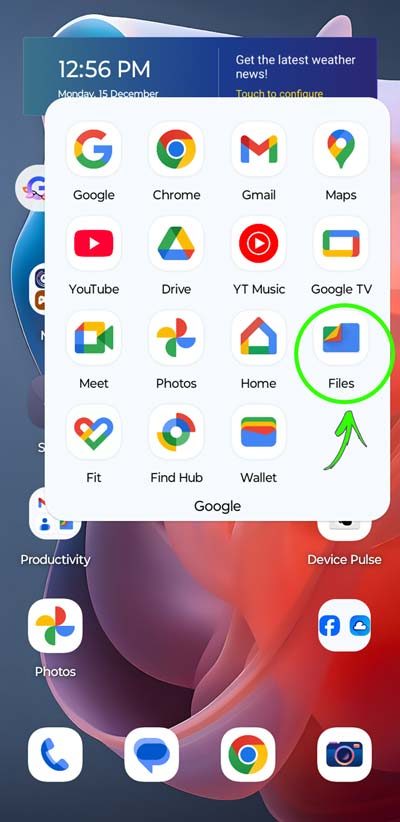
Open your Google Play “Files” App to display all the main folders on your device. (See screenshot below of your Home Screen with Apps listed in the “Google” folder). You can also search for the “Files” App by swiping the Home Screen up and typing “Files” into the search field provided.
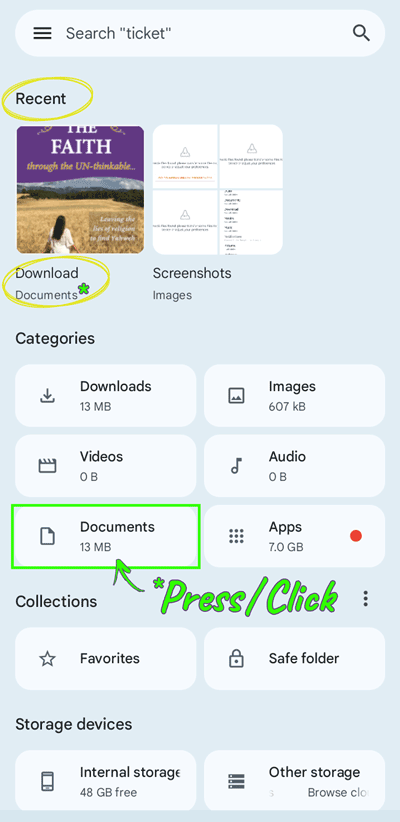
Your Google Play “Files” App now displays all the main folders on your device.
(See screenshot below as a visual for the instructions below).
In the "Recent" section at the top, you may already see a small front cover image of “KEEPING THE FAITH through the UN-thinkable...”
Beneath the image you will see how it got onto your device and under that, the name of the folder it was downloaded to - below example: "Download," and "Documents."
Below the "Recent" section is the "Categories" section. Click/Press the category where your download is located. In the below example, this is "Documents" (NOTE: Your download may also be in "Downloads" category).
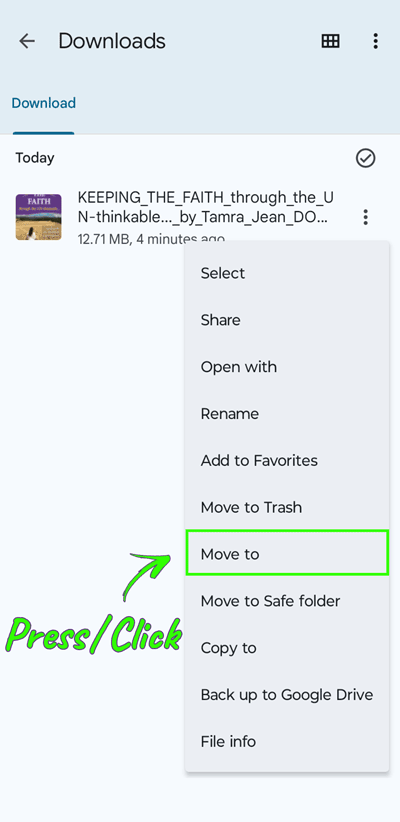
The contents of the folder you selected Press/Click the three horizontal dots icon to the right of the audiobook, “KEEPING THE FAITH through the UN-thinkable…” (Highlighted in green circle in screenshot below).
A dropdown menu appears displaying list of options. Press/Click “Move to” (See highlighted green block in screenshot below).
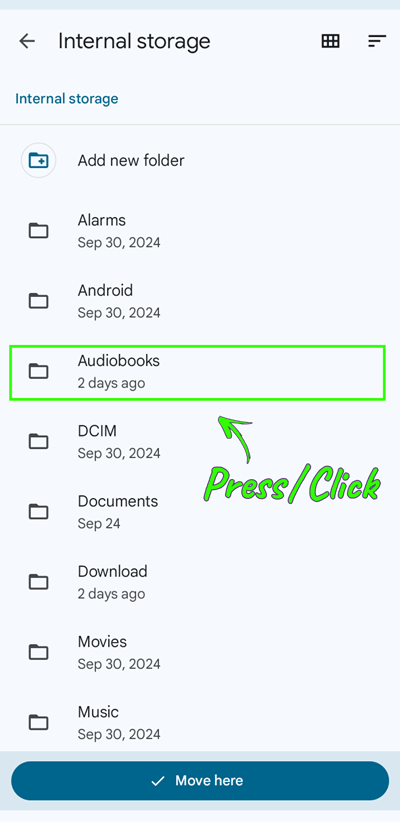
In the contents list of the folder you selected, press/click “Audiobooks” (Highlighted in green block in screenshot below).
In the “Audiobooks” subfolder page, press/click on either the “Add new folder” at the top, or the “+” at the bottom right of the screen (Highlighted in green block in screenshot below).
Click/Press the “Copy” button or select highlighted text to copy the audiobook title:
!!! DEVELOPER NOTE: Html widget with Copy Script for copying the book title is at bottom of this left column this section !!!
KEEPING THE FAITH through the UN-thinkable...
Then go back to your Files App and, in the “New folder” pop-up box, paste the copied book title (or type it) into the “New folder” field and then click “Move to folder.”
(Highlighted in green block in screenshot below).
The “Audiobooks” subfolder page, now displays your new audiobook, “KEEPING THE FAITH through the UN-thinkable…” (Highlighted in green block in screenshot below). Now go to STEP 4
STEP 4
???Audiobook general App icon??
Step-by-step guide to import your new audiobook: “KEEPING THE FAITH through the UN-thinkable…”
NOTE: The Google Play Books App on your PC computer or Android device will not play FREE self-published audiobooks. Read on to find out how to listen to this FREE audiobook using a FREE alternative audiobook player App...
If you already use an alternative audiobook player App:
Open your App and import your recently downloaded audiobook m4b file: “KEEPING THE FAITH through the UN-thinkable...”. Then press/click Play and let the enlightening begin!
If you do NOT have an alternative audiobook player App:
We have the solution for you! We have tried and tested an App called Smart Audiobook Player. The standard version is FREE! And is only $2 one time payment for advanced features. It is really easy to use, with great features AND it can also play normal music mp3 files. (We receive no benefits/royalties from you getting this App.)
To get the App, click the “Get Smart Audiobook Player (Google Play Store)” button below and, once installed, return to this page and go to STEP 5.
NOTE: As you complete each step of the process in the Apps/applications you will be opening, return to this page to continue with the next step.
STEP 5
Step-by-step guide to import your new audiobook: “KEEPING THE FAITH through the UN-thinkable…”
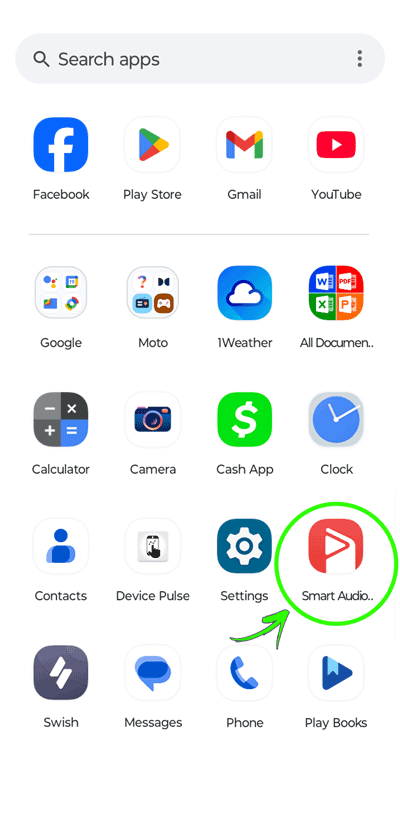
Open your Smart Audiobook Player App by finding and clicking/pressing the App icon (See screenshot below – circled green).
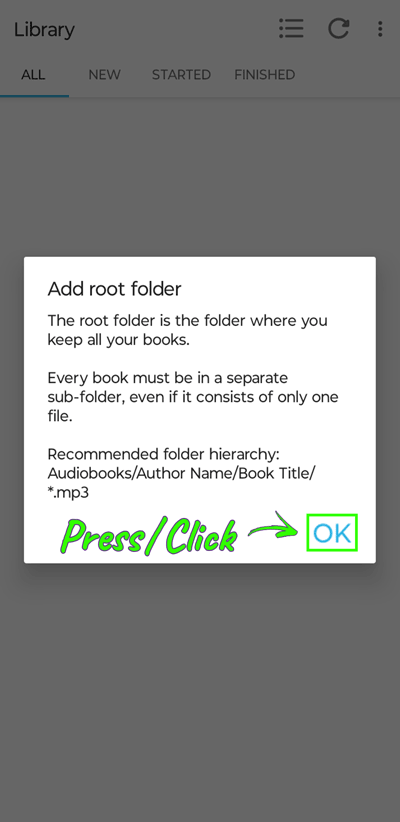
Smart Audiobook Player App – On the opening screen, you are required to “Add root folder” so that Smart Audiobook Player will be able to find your audiobook. Click/Press “OK.“ (See screenshot below – circled green).
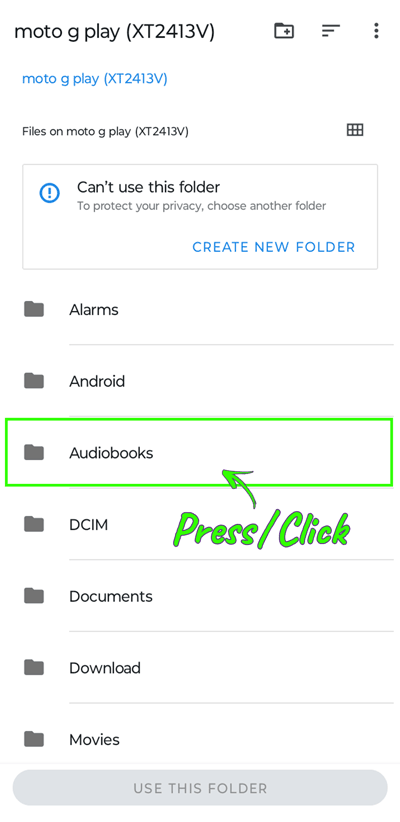
Click/Press the “Audiobooks” folder. This is the folder you moved your downloaded audiobook to. (See green highlight in screenshot below).
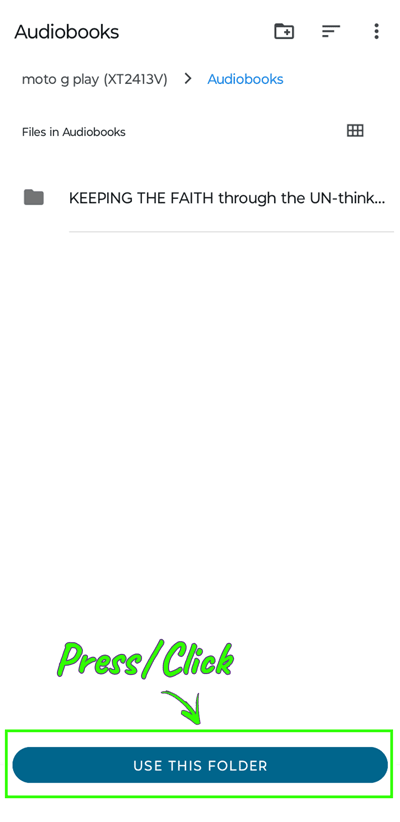
The “Audiobooks” folder now displays your new audiobook, “KEEPING THE FAITH through the UN-thinkable…”
Click/Press the “USE THIS FOLDER” button. (See green highlight in screenshot below).
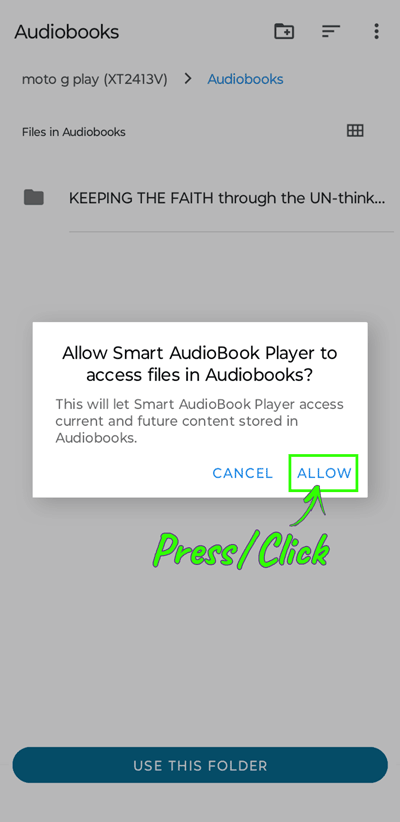
Click/Press the “ALLOW” to get access to your audiobook in your chosen root folder. (See green highlight in screenshot below).
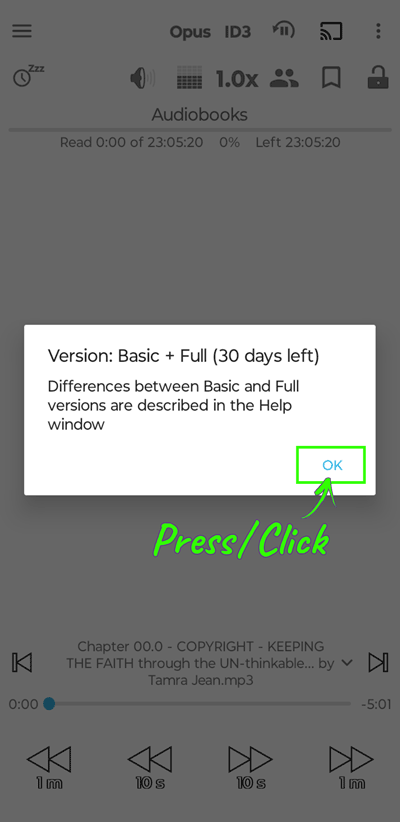
Click/Press the “OK” to confirm you are happy to remain with the Basic (FREE) version of the Smart Audiobook Player App (with the gift of Full version features for 30 days – you will have the option to upgrade if you wish to keep the advanced features of the Full version then). (See green highlight in screenshot below).
STEP 6
Step-by-step guide to using your Smart Audiobook Player App to play your new audiobook: “KEEPING THE FAITH through the UN-thinkable…”
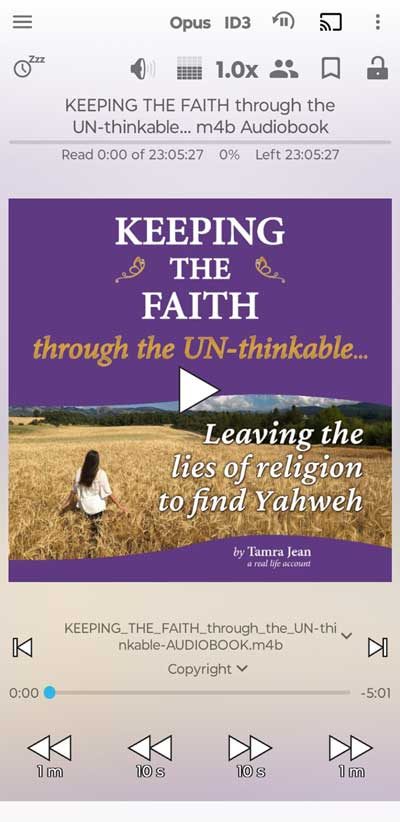
Your new audiobook, “KEEPING THE FAITH through the UN-thinkable…” may now load and play automatically (or you can click/press the play button in the middle. Then go to step 3. (See green highlight in screenshot below).
If your audiobook "Play" screen does not display, go to next step to find out how to access the Library.
If your audiobook “Play” screen does not appear automatically, follow these steps to go to your audiobook library where you will find “KEEPING THE FAITH through the UN-thinkable…”:
At the top right of the screen, click/press the three vertical dots in a circle (see (1) green square highlight in screenshot below).
At the top of the drop down menu that appears, click/press "Library"(see 2).
Finding chapters in your audiobook
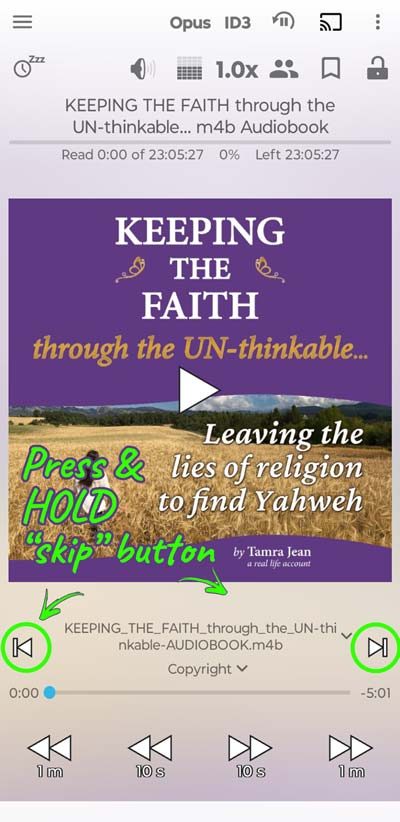
To select specific chapters in the Table of Contents of your new audiobook, “KEEPING THE FAITH through the UN-thinkable…” click and hold/press and hold either one of the “skip” buttons above the audio timeline near the bottom. (See green circle highlights in screenshot below).
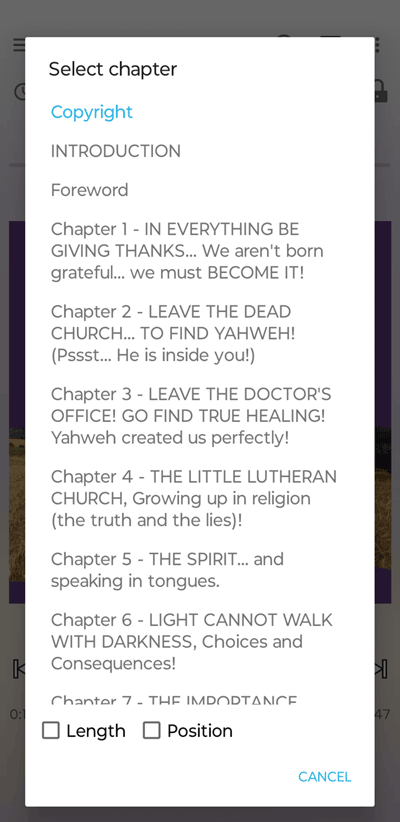
The Table of Contents (Chapters List) will appear. Click/Press chapter you want to start playing from that point of the book. (See screenshot below).
Search online for Smart Audiobook Player App additional features, including bookmarks, sleep timers, reading speed controls etc.
Smart Audiobook Player has other great features including bookmarks, sleep timers, reading speed controls etc. These feature are accessible by clicking/pressing the top menu icons.
WORDS CREATE! WATCH what you speak!
Yahweh spoke and CREATED the world! || Be ambitious to be quiet || Speak ONLY what Yahweh directs you to speak! || Request in Yeshua’s Name, believing, and it will occur! || No joking! (No tainted words… and no stupid speaking… etc) || No logical reasoning or complaining! || Speak TRUTH! || Speak about Yahweh only!
Yahweh spoke and CREATED the world!
3 And Elohim said: Let light come to be! And light came to be.
Genesis 1:3
(Concordant Literal Version)
~ ~ ~ ~ ~ ~ ~
26 And Elohim said: Let Us make humanity in Our image and according to Our likeness.
Genesis 1:26
(Concordant Literal Version)
Be ambitious to be quiet…
11 and that you be ambitious to be quiet, and to be engaged in your own affairs, and to be working with your hands, according as we charge you,
1 Thessalonians 4:11
(Concordant Literal Version)
Speak ONLY what Yahweh directs you to speak!
49 “…seeing that I speak not from Myself, but the Father Who sends Me, He has given Me the precept, what I may be saying and what I should be speaking. 50 And I am aware that His precept is life eonian. What, then, I am speaking, according as the Father has declared it to Me, thus am I speaking.”
John 12:49-50
(Concordant Literal Version)
~ ~ ~ ~ ~ ~ ~
28 Jesus, then, said to them again that “Whenever you should be exalting the Son of Mankind, then you will know that I am, and from Myself I am doing nothing, but, according as My Father teaches Me, these things I am speaking. 29 And He Who sends Me is with Me. He does not leave Me alone, for what is pleasing to Him am I doing always.”
John 8:28-29
(Concordant Literal Version)
~ ~ ~ ~ ~ ~ ~
18 For I am not daring to speak any of what Christ does not effect through me for the obedience of the nations, in word and work, 19 in the power of signs and miracles, in the power of God’s spirit, so that, from Jerusalem and around unto Illyricum, I have completed the evangel of the Christ.
Romans 15:18-19
(Concordant Literal Version)
~ ~ ~ ~ ~ ~ ~
16 Jesus, then, answered them and said, “My teaching is not Mine, but His Who sends Me. 17 If anyone should be wanting to be doing His will, he will know concerning the teaching, whether it is of God or I am speaking from Myself. 18 He who is speaking from himself is seeking his own glory, yet He Who is seeking the glory of Him Who sends Him, this One is true, and injustice is not in Him.”
John 7:16-18
(Concordant Literal Version)
~ ~ ~ ~ ~ ~ ~
45 “The good man out of the good treasure of his heart is bringing forth that which is good, and the wicked man out of the wicked treasure of his heart is bringing forth that which is wicked, for out of the superabundance of the heart his mouth is speaking.”
Luke 6:45
(Concordant Literal Version)
Request in Yeshua’s Name, believing, and it will occur!
22 And answering, Jesus is saying to them, “If you have faith of God, 23 verily, I am saying to you that whosoever may be saying to this mountain, ‘Be picked up and cast into the sea,’ and may not be doubting in his heart, but should be believing that what he is speaking is occurring, it shall be his, whatsoever he may be saying.” 24 “Therefore I am saying to you, All, whatever you are praying and requesting, be believing that you obtained, and it will be yours.”
Mark 11:22-24
(Concordant Literal Version)
~ ~ ~ ~ ~ ~ ~
7 “Request and it shall be given you. Seek and you shall find. Knock and it shall be opened to you. 8 For everyone who is requesting is obtaining, and who is seeking is finding, and to him who is knocking it shall be opened.”
Matthew 7:7
(Concordant Literal Version)
~ ~ ~ ~ ~ ~ ~
12 “Verily, verily, I am saying to you, he who is believing in Me, the works which I am doing he also will be doing, and greater than these will he be doing, for I am going to the Father. 13 And whatever you should be requesting in My name, this I will be doing, that the Father should be glorified in the Son. 14 If you should ever be requesting anything of Me in My name, this I will be doing.”
John 14:12-14
(Concordant Literal Version)
~ ~ ~ ~ ~ ~ ~
7 “If ever you should be remaining in Me and My declarations should be remaining in you, whatever you should be wanting, request, and it will be occurring to you.”
John 15:7
(Concordant Literal Version)
~ ~ ~ ~ ~ ~ ~
23 “Verily, verily, I am saying to you that whatever you should be requesting the Father, He will be giving it to you in My name. 24 Hitherto you do not request anything in My name. Request and you shall obtain, that your joy may be full.”
John 16:23-24
(Concordant Literal Version)
~ ~ ~ ~ ~ ~ ~
19 “Again, verily, I am saying to you that, if ever two of you should be agreeing on the earth concerning any matter, whatsoever it is they should be requesting shall be coming to them from My Father Who is in the heavens. 20 For where two or three are, gathered in My name, there am I in the midst of them.”
Matthew 18:19-20
(Concordant Literal Version)
~ ~ ~ ~ ~ ~ ~
21 Now, answering, Jesus said to them, “Verily, I am saying to you, If you should be having faith and not be doubting, not only that to the fig tree will you be doing, but if you should be saying to this mountain also, ‘Be picked up and cast into the sea!’ it will be occurring. 22 And all, whatsoever you should be requesting in prayer, believing, you shall be getting.”
Matthew 21:21-22
(Concordant Literal Version)
No joking. (No tainted words… and no stupid speaking… etc)
29 Let no tainted word at all be issuing out of your mouth, but if any is good toward needful edification, that it may be giving grace to those hearing. 30 And do not be causing sorrow to the holy spirit of God by which you are sealed for the day of deliverance.
Ephesians 4:29-30
(Concordant Literal Version)
~ ~ ~ ~ ~ ~ ~
4 …and vileness and stupid speaking [silly talk, buffoonery, foolish talking – Strong’s definition] or insinuendo [joke, jesting, witticism – Strong’s definition], which are not proper, but rather thanksgiving.
Ephesians 5:4
(Concordant Literal Version)
~ ~ ~ ~ ~ ~ ~
36 “Now I am saying to you that, for every idle declaration which men shall be speaking, they shall be rendering an account concerning it in the day of judging. 37 For by your words shall you be justified, and by your words shall you be convicted.”
Matthew 12:36-37
(Concordant Literal Version)
~ ~ ~ ~ ~ ~ ~
1 As dead gadflies cause a compound of oil to stink, to bubble forth, So a little frivolity [characterized by lack of seriousness or sense. frivolous conduct; self-indulgently carefree; unconcerned about or lacking any serious purpose – Dictionary.com] outweighs wisdom and glory…12 Words from the mouth of a wise man are grace, Yet the lips of a stupid man swallow him up.13 At the start the words of his mouth are frivolity, And at last from his mouth comes evil raving.
Ecclesiastes 10:1, 12-13
(Concordant Literal Version)
~ ~ ~ ~ ~ ~ ~
33 Be not deceived: evil conversations are corrupting kind characters. 34 Sober up justly
1 Corinthians 15:33-34a
(Concordant Literal Version)
~ ~ ~ ~ ~ ~ ~
5 … and leading into captivity every apprehension into the obedience of Christ,
2 Corinthians 10:5b
(Concordant Literal Version)
~ ~ ~ ~ ~ ~ ~
9 And this I am praying, that your love may be superabounding still more and more in realization and all sensibility, 10 for you to be testing what things are of consequence, that you may be sincere and no stumbling block for the day of Christ, … 27 Only be citizens walking worthily of the evangel of Christ,
Philippians 1:9-10 and 27
(Concordant Literal Version)
~ ~ ~ ~ ~ ~ ~
Read also Mark 5:39-40 (Yeshua Christ throws out those who laughed Him to scorn), Proverbs 10:8 and 10 (foolish of lips), Ecclesiastes 10:3 & 5-6 & 14 (frivolity), 2 Corinthians 5:16-17 (new creation), 1 John 2:15-17 (of the world), Philippians 4:8 (whatever is grave/serious be taking into account), Proverbs 4:23-24 (perverse mouth, devious lips), 1 Timothy 6:20-21 (profane prattlings), Colossians 3:9 & 1 John 2:21 (jokes are lies not truths), 1 Timothy 1:5-11 (anything opposing sound teaching), James 1:5-8 (double souled, serious and then joking), Proverbs 3:34 (mockers), James 3:1-13 (unbridled tongue), Ephesians 5:3-13 (vileness and stupid speaking or insinuendo/wit/facetiousness/pleasantry/jesting), 1 Timothy 6:3-4a (sound words), Colossians 2:8 (human tradition is to joke), Hebrews 11:14 (holiness), etc…
No logical reasoning or complaining!
14 All be doing without murmurings and reasonings…
Philippians 2:14
(Concordant Literal Version)
~ ~ ~ ~ ~ ~ ~
10 Nor yet be murmuring even as some of them murmur, and perished by the exterminator.
1 Corinthians 10:10
(Concordant Literal Version)
Speak TRUTH!
22 False lips are an abhorrence to Yahweh, Yet those who hold to truth are dear to Him.
Proverbs 12:22
(Concordant Literal Version)
~ ~ ~ ~ ~ ~ ~
8 For the rest, brethren, whatever is true, whatever is grave, whatever is just, whatever is pure, whatever is agreeable, whatever is renowned — if there is any virtue, and if any applause, be taking these into account.
Philippians 4:8
(Concordant Literal Version)
~ ~ ~ ~ ~ ~ ~
14 And, coming, they are saying to Him, “Teacher, we are aware that you are true, and you are not caring about anyone, for you are not looking at the face of men, but, of a truth, the way of God are you teaching…”
Mark 12:14a
(Concordant Literal Version)
~ ~ ~ ~ ~ ~ ~
44 “You are of your father, the Adversary, and the desires of your father you are wanting to do. He was a man-killer from the beginning, and does not stand in the truth, for truth is not in him. Whenever he may be speaking a lie, he is speaking of his own, for he is a liar, and the father of it. 45 Yet I — seeing that I am speaking the truth, you are not believing Me. 46 Who of you is exposing Me concerning sin? If I am telling the truth, wherefore are you not believing Me?”
John 8:44-46
(Concordant Literal Version)
~ ~ ~ ~ ~ ~ ~
28 Jesus, then, said to them again that “Whenever you should be exalting the Son of Mankind, then you will know that I am, and from Myself I am doing nothing, but, according as My Father teaches Me, these things I am speaking.”
John 8:28-29
(Concordant Literal Version)
~ ~ ~ ~ ~ ~ ~
18 For I am not daring to speak any of what Christ does not effect through me for the obedience of the nations, in word and work, 19 in the power of signs and miracles, in the power of God’s spirit, so that, from Jerusalem and around unto Illyricum, I have completed the evangel of the Christ.
Romans 15:18-19
(Concordant Literal Version)
Speak about Yahweh only!
18 Hence you will place these my words in your heart and in your soul, and you will tie them as a sign on your hand, and let them come to be as brow-bands between your eyes. 19 You will teach them to your sons, speaking of them when you sit in your house, when you walk on the road, when you lie down and when you arise. 20 You will write them on the jambs of your house and on your gates,
Deuteronomy 11:18-20
(Concordant Literal Version)
~ ~ ~ ~ ~ ~ ~
1 And I, coming to you, brethren, came not with superiority of word or of wisdom, announcing to you the testimony of God, 2 for I decide not to perceive anything among you except Jesus Christ and Him crucified. 3 And I came to be with you in weakness, and in fear, and in much trembling, 4 and my word and my heralding were not with the persuasive words of human wisdom, but with demonstration of spirit and of power, 5 that your faith may not be in the wisdom of men but in the power of God.